Free evaluation versions
We offer all of our software as "try before you buy": visit our Download page to access the free 7-day evaluation versions.
e-motional.com is a division of ESM Software, an award-winning software developer for system monitoring, security, access control solutions and corporate communications.
We offer custom software for all Windows platforms. We specialize in:
We offer all of our software as "try before you buy": visit our Download page to access the free 7-day evaluation versions.
We offer IT professionals a range of system security products, including Transparent Screen Lock® PRO, Transparent Screen Lock® SMART, Transparent Screen Lock® SMART CARD, and Transparent Screen Lock® RFID.
Transparent Screen Lock® is a U.S. registered trademark.
These enable you to password protect access to your computer, while existing programs still run in the background.
Customers may maximize security with the use of a Smart Card or RFID, which may include an optional Proximity Sensor to automatically lock access to a computer system whenever the user steps away.
We take your privacy seriously. Learn more in our Privacy Policy.
A sample of our Software Licensing Agreement may be found here. Site licenses and unlimited distribution rights are available.
Learn more about our Return Policy.
Yes. All of our software products are available as a free 7-day trial. The trial version of the software is fully functional, except that it will time-out after 7 days, so that you may evaluate the software directly within your environment. Please see our Download page for details.
Placing an online order using FastSpring:
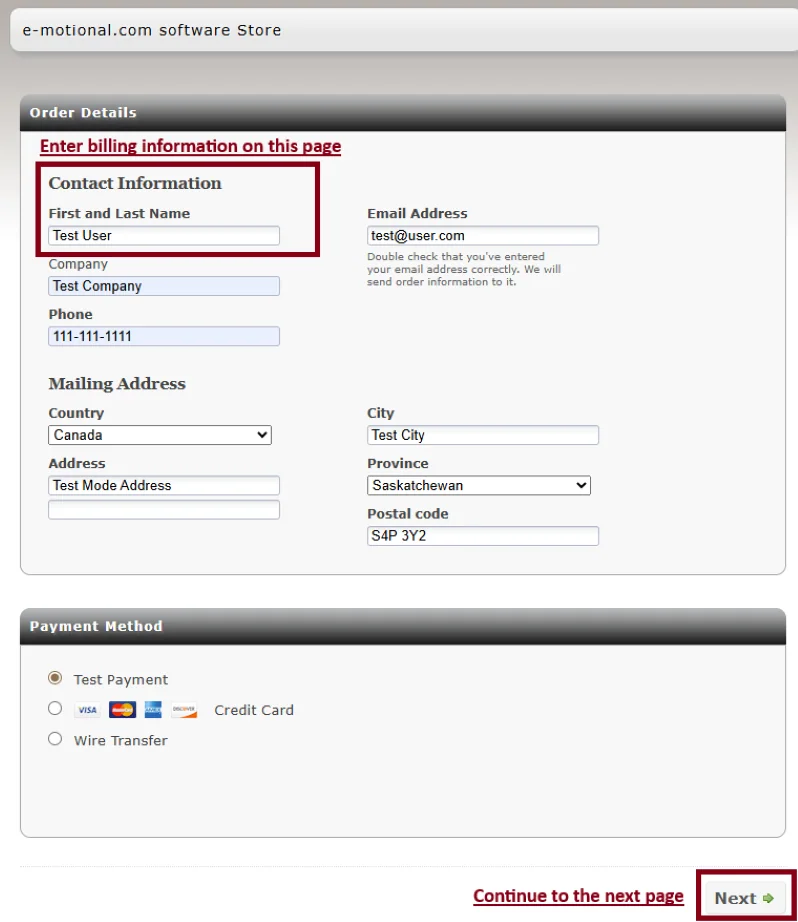
Step 1 (Order Details): On the first page of the order form, in the Contact Information section, enter the Billing information for the purchaser.
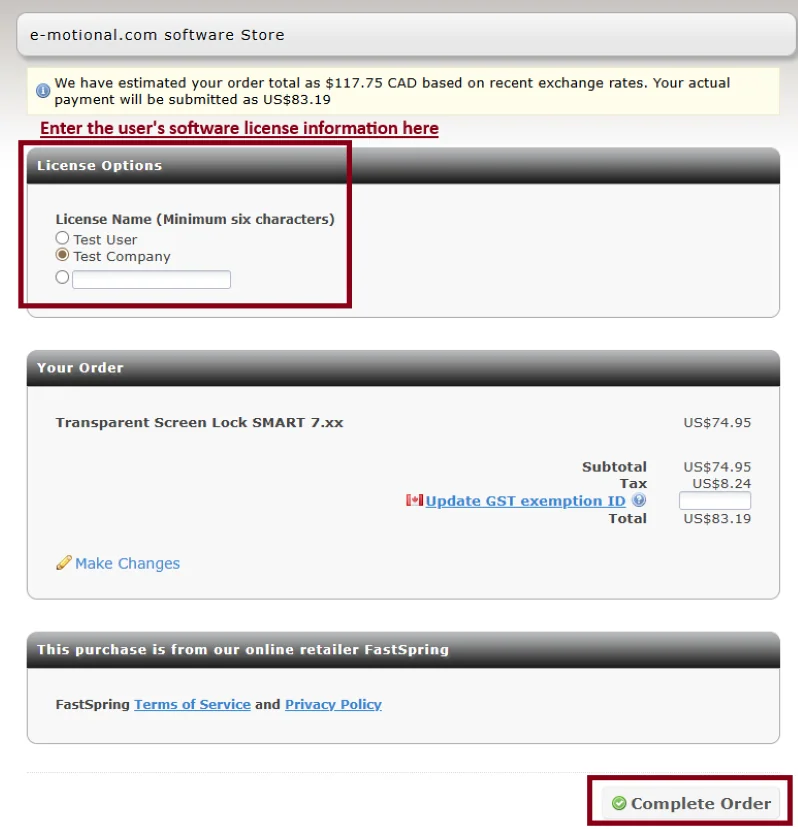
Step 2 (License Options): On the second page of the order form, specify the user's software license information in the License Options section to register the software. We recommend entering the customer's company name. For large companies, consider adding the city and/or project name.
To uninstall (remove) one of our programs from your computer, use the Windows Add/Remove Programs menu. To do this, click on the Start button, select Settings, select Control Panel, open Add/Remove Programs, select the program you wish to uninstall, and then click on Add/Remove.
All of our software programs include a "Help" file in the Software Download. All of the software configuration and installation options are described. If you have any additional questions, please contact us at support@e-motional.com.